

USBTreeView Analyze & Monitor USB Devices
USBTreeView is a USB analysis and diagnostic tool designed to display detailed technical information about every USB device connected to your system. It helps users see not only what devices are connected, but also how they are linked through USB hubs and controllers.
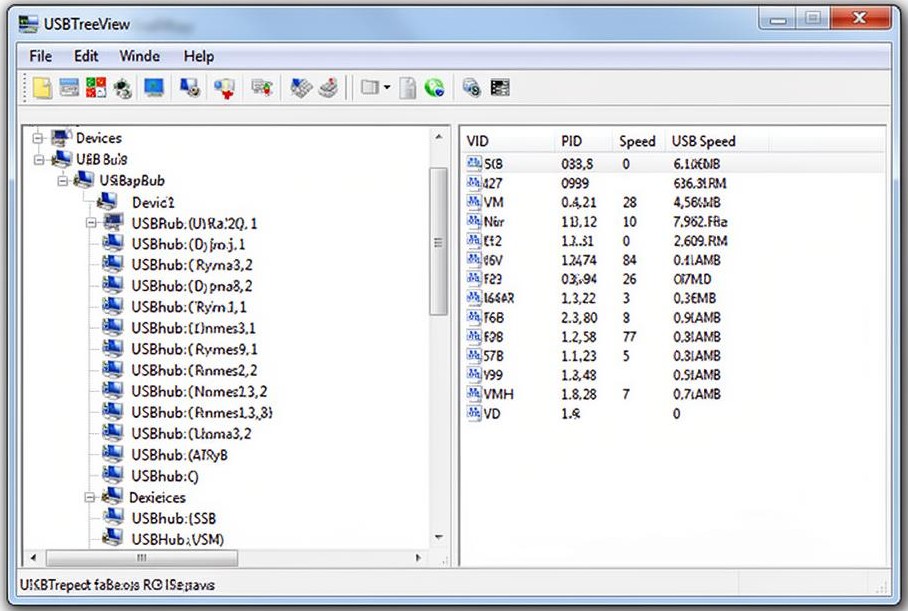
What is USBTreeView?
USBTreeView is a specialized Windows utility that allows users to view all connected USB devices in a clear, hierarchical (tree-like) structure. Instead of showing devices in a simple list, it organizes them based on how they are physically and logically connected to your computer making it much easier to understand your USB setup.
Key Features
USB Tree View
Displays all connected USB devices in a hierarchical tree format, showing relationships between controllers, hubs, and endpoints for easy understanding.
- Key Points:
- Visual hierarchy
- Easy navigation
- Organized layout
- Developer-friendly
VID & PID Info
Shows unique vendor and product identification codes assigned to USB devices, helping users identify manufacturers and specific hardware models accurately.
- Key Points:
- Unique identifiers
- Manufacturer tracking
- Device recognition
- Useful for debugging
USB Speed
Indicates the operating speed of each USB device, helping users determine performance levels and compatibility with different USB standards easily.
- Key Points:
- Speed detection
- Performance insight
- USB version clarity
- Compatibility check
Live Updates
Automatically refreshes and updates the device list whenever USB devices are connected or disconnected ensuring accurate & current system information display.
- Key Points:
- Auto refresh
- Live updates
- No manual reload
- Dynamic tracking
Power Usage
Displays power usage information of connected USB devices, helping users understand energy consumption and identify devices drawing excessive power from ports.
- Key Points:
- Power monitoring
- Energy usage
- Detect overload
- Optimize devices
Device Details
Provides detailed technical descriptors and connection data, including configurations, endpoints, and interface details for in-depth USB device analysis and diagnostics.
- Key Points:
- Detailed specs
- Interface data
- Endpoint info
- Advanced analysis
Why Use USBTreeView?
Using USBTreeView gives you deep visibility into how USB devices interact with your system. Here’s a clear explanation of its main benefits:
Connection Issues
Stop guessing why a device isn’t working. USBTreeView helps you:
- See if the device is actually detected by the system.
- Identify specific connection errors or failed ports.
- Check if the fault lies in the cable, port, or device.
Unknown Devices
No more “Unknown USB Device” mysteries. Gain full control:
- View Vendor ID (VID) and Product ID (PID).
- Instantly find the manufacturer and device type.
- Identify hardware even if drivers are missing.
Port Structure
Visualize the tree hierarchy that Device Manager hides from you:
- See how devices connect through hubs & controllers.
- Understand exactly which device is in which port.
- Diagnose complex port-specific issues easily.
Power Usage
Keep your hardware safe from overloads and power surges:
- Check real-time power consumption per device.
- Ensure all hardware stays within safe limits.
- Avoid hub overloads with high-power external drives.
Who Should Use USBTreeView?
This tool is not just for basic users it’s especially valuable for people who need deep technical insights into USB devices. Here’s a clear breakdown of each target audience:
👨💻 Developers & Programmers
If you’re working with software that interacts with hardware (like drivers, embedded systems, or USB-based apps), USBTreeView is extremely useful.
- Helps identify Vendor ID (VID) and Product ID (PID)
- Useful for debugging USB-related code issues
- Lets you understand how devices are connected internally
- Ideal for testing apps that rely on USB communication
🛠️ IT Technicians
IT professionals often deal with hardware issues in offices or client systems. USBTreeView helps them quickly diagnose problems.
- Detects faulty or unrecognized USB devices
- Shows whether a device is properly connected
- Helps troubleshoot USB port or driver issues
- Useful for maintaining multiple systems
⚙️ Hardware Engineers
For those designing or testing physical devices, USBTreeView provides detailed low-level data.
- Displays device descriptors and configurations
- Useful during hardware testing and validation
- Helps analyze USB communication structure
- Assists in debugging custom-built USB devices
🧠 Advanced Windows Users
Even if you’re not a professional, but love exploring system details, this tool is for you.
- Gives complete visibility of all USB connections
- Useful for optimizing USB performance
- Helps identify unknown or suspicious devices
- Great for learning how USB architecture works
How to Download & Install USBTreeView
USBTreeView is a portable Windows tool, which means you don’t need to install it like regular software. You can simply download it, extract it, and run it immediately. Here’s a step-by-step guide:
Go to the Official Website
Open your browser and visit the official USBTreeView page:
🛡️ This is the safest source to download the tool, ensuring you get the latest version free from malware.
Download the ZIP File
On the website, locate the “USBTreeView ZIP file” download link.
Format: ZIP Size: < 1 MB
Click the link to download the compressed ZIP file to your computer. The file is usually very small, under 1 MB.
Extract the ZIP File
Navigate to the folder where the ZIP file was downloaded.
Right-click the ZIP file and choose “Extract All…” or use your preferred extraction tool (e.g., WinRAR, 7-Zip).
Choose a destination folder where you want the tool to reside. After extraction, you will see several files, including UsbTreeView.exe.
Run USBTreeView
Double-click the executable to launch the program. No installation is required—it runs directly from the folder.
Pro Tip: You can even move the folder to a USB drive and run it on another PC without installing.
Comparison with Alternatives
When managing or monitoring USB devices on Windows, there are a few alternatives to USBTreeView. The two most common ones are USBDeview by NirSoft and Windows Device Manager.
USBDeview (NirSoft)
Overview: USBDeview is a free utility that lists all USB devices currently or previously connected to your computer. It allows you to uninstall devices, disable them, or get detailed info.
- Lists both connected and previously connected devices.
- Allows device uninstallation or disabling directly from the tool.
- Provides detailed device info
- Portable; no installation required.
- Interface is less visually intuitive (no tree view).
- Cannot easily visualize the hierarchy of hubs and ports like USBTreeView.
- Real-time monitoring is less detailed; must refresh manually.
Windows Device Manager
Overview: Device Manager is a built-in Windows tool that allows users to view all hardware devices, including USB devices.
- Already included in Windows; no download required.
- Can update, uninstall, or disable USB drivers.
- Provides basic device information.
- Limited details compared to USBTreeView (no VID/PID, power, or hub topology).
- No real-time tree view of connected devices.
- Less user-friendly for advanced troubleshooting or debugging.
USBTreeView FAQs
Basics & Overview
What is USBTreeView?
USBTreeView is a free Windows tool that displays all connected USB devices in a tree structure, showing detailed information like Vendor ID (VID), Product ID (PID), serial numbers, and power usage.
Is USBTreeView safe to use?
Yes, USBTreeView is a portable, read-only tool that does not install drivers or modify system files, making it safe for personal and professional use.
Which Windows versions are compatible with USBTreeView?
USBTreeView works on Windows XP, Vista, 7, 8, 10, and 11, both 32-bit and 64-bit versions.
Do I need to install USBTreeView?
No installation is required. Simply download the ZIP file, extract it, and run UsbTreeView.exe.
Who should use USBTreeView?
It’s ideal for developers, IT technicians, power users, and anyone who wants to monitor USB devices in detail.
Why is USBTreeView better than Windows Device Manager?
Unlike Device Manager, USBTreeView shows a full USB hierarchy, real-time updates, detailed device info, and power consumption, making troubleshooting easier.
Features & Usage
Can USBTreeView detect unknown USB devices?
Yes, it displays all connected devices, including those not recognized by Windows, helping you identify unknown hardware.
What information does USBTreeView provide about USB devices?
It shows VID, PID, device type, manufacturer, serial number, speed (USB 2.0 / 3.0 / 3.1), and power consumption per port.
Can I monitor USB devices in real-time?
Yes, USBTreeView updates automatically when a device is plugged in or removed, making real-time monitoring easy.
Does USBTreeView work with USB hubs?
Yes, it displays hubs and connected devices in a tree structure, allowing you to see which ports are in use and their power load.
Can I export USB device information?
Yes, you can save device details to a text or CSV file for reporting or troubleshooting purposes.
Does USBTreeView work on laptops and desktops alike?
Absolutely. It works on any Windows system with USB ports, including laptops, desktops, and workstations.
Troubleshooting & Advanced Use
How do I identify a device using VID and PID?
Use online databases to look up the VID and PID shown in USBTreeView to find the device manufacturer and model.
Can USBTreeView help fix USB connectivity issues?
Yes, by showing the full USB topology and power usage, you can identify overloaded ports, faulty hubs, or device conflicts.
Why isn’t my device showing up in USBTreeView?
Possible reasons include a disconnected cable, a disabled USB port, or driver issues. Ensure the device is properly connected and recognized by Windows.
Can USBTreeView detect USB power consumption?
Yes, it shows the current power drawn by each device, which is useful for troubleshooting overloaded ports.
Is USBTreeView suitable for IT troubleshooting?
Yes, it’s widely used by IT professionals to monitor, analyze, and report USB device issues efficiently.
Can I use USBTreeView on a virtual machine?
Yes, as long as the virtual machine supports USB passthrough, USBTreeView can detect and display connected devices within the VM.